
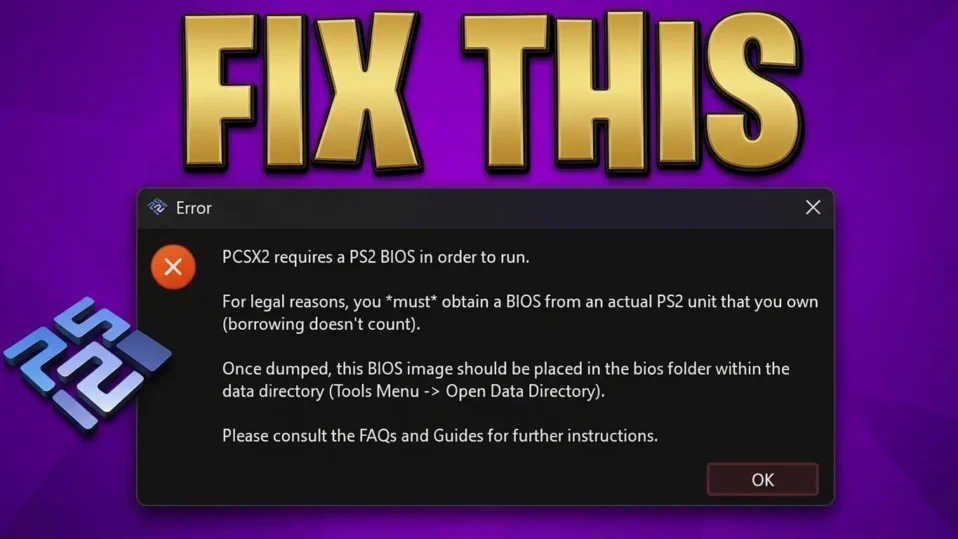
If you’re seeing the error “PCSX2 requires a PS2 BIOS in order to run”, you’re not alone. This is one of the most common issues users face when setting up PCSX2 for the first time.
The error usually appears right when you try to launch a game, and suddenly everything stops working. It can feel confusing, especially if you’ve already downloaded files and followed tutorials.
Here’s the simple truth: PCSX2 is not broken. The problem is almost always related to missing BIOS, incorrect folder setup, or wrong configuration. The good news is that this error is 100% fixable if you follow the right steps carefully. Let’s walk through everything in a clear, practical way so you can fix it permanently.
What Does “PCSX2 Requires A PS2 BIOS” Error Mean?
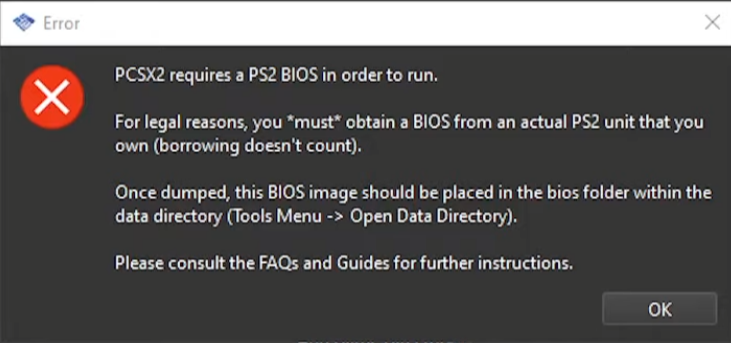
When PCSX2 shows this error, it simply means the emulator cannot find a valid PlayStation 2 BIOS file on your system. Without BIOS, PCSX2 cannot boot the virtual console or run any game.
Think of BIOS as the core system software of the PS2. It initializes hardware, loads the system menu, and starts the game. Without it, the emulator has nothing to execute.
In practical terms, this error tells you:
- BIOS file is missing
- BIOS file is not in the correct folder
- BIOS is not selected in settings
- BIOS file is invalid or corrupted
Until this is fixed, PCSX2 will not run any game at all.
Why PS2 BIOS Is Required For PCSX2
Unlike some emulators, PCSX2 does not include BIOS files due to legal restrictions. You must provide your own BIOS file extracted from a real PS2 console.
The BIOS is responsible for:
- Booting the PlayStation 2 system
- Initializing CPU, memory, and graphics
- Handling memory cards and controllers
- Verifying and launching game discs
Without BIOS, the emulator cannot simulate real hardware behavior. That’s why the error appears before anything else happens.
Fix PCSX2 Requires A PS2 BIOS In Order To Run Error (2026 Guide)
Here are the step-by-step methods to fix the “PCSX2 requires a PS2 BIOS in order to run” error (2026). Follow each step carefully to properly set up your BIOS and get PCSX2 working without issues.
Step 1: Make Sure You Have a Valid PS2 BIOS File
The first thing you need is a proper BIOS file. Many users download the wrong file or use incomplete versions.
Check these points:
- File format should be .bin
- File size should be around 2MB–4MB
- File should not be inside a ZIP or RAR archive
- Avoid renamed or fake files
If your BIOS file is incorrect or corrupted, PCSX2 will either not detect it or show an “invalid BIOS” error.
Step 2: Place BIOS in the Correct Folder
This is where most users make mistakes. PCSX2 only scans specific directories for BIOS files.
Correct BIOS folder path (Windows):
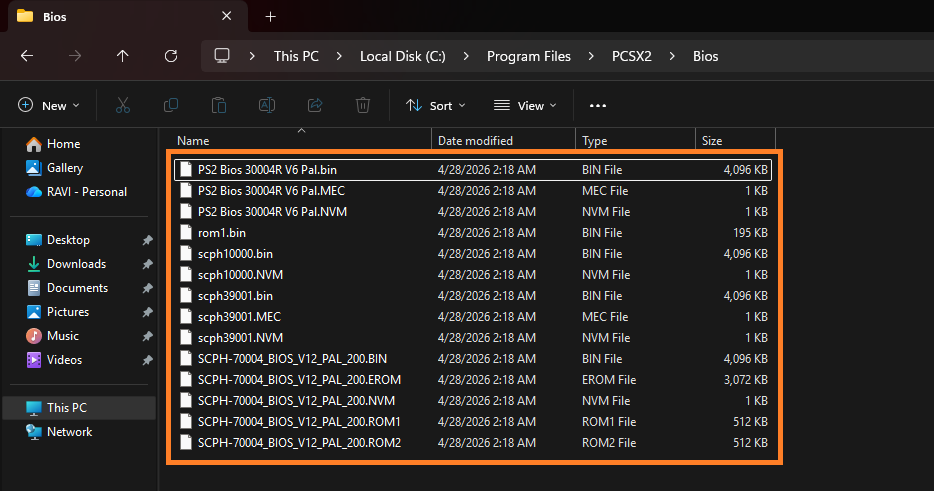
Documents\PCSX2\bios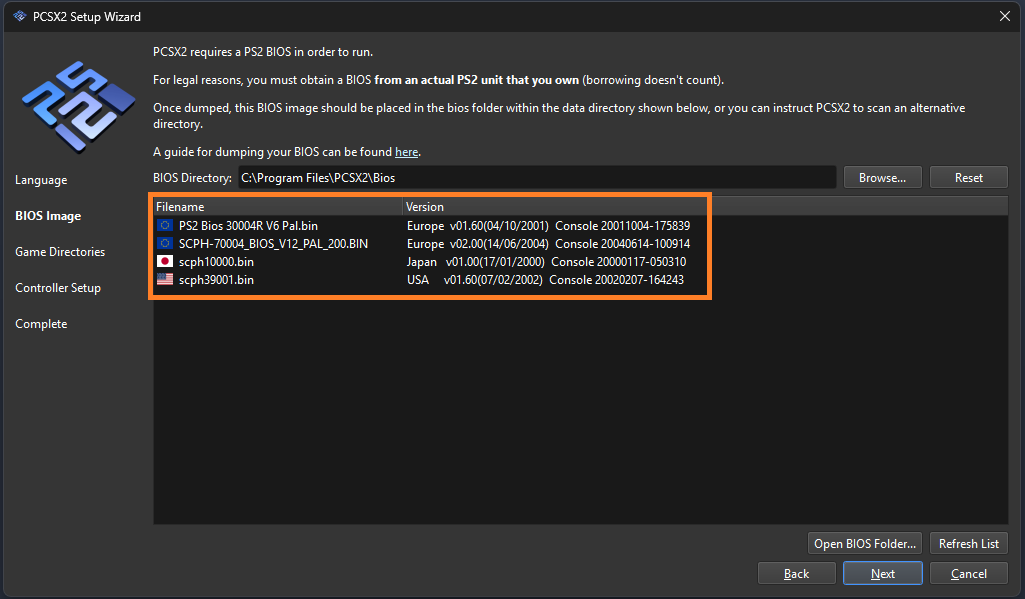
If your BIOS is placed anywhere else, PCSX2 will not detect it.
If BIOS Folder Does Not Exist:
- Go to your PCSX2 main folder or Documents folder
- Create a new folder
- Name it exactly: bios (all lowercase recommended)
- Paste your BIOS file inside this folder
Important tips:
- Do NOT place BIOS inside subfolders
- Keep files directly inside the bios folder
- Use simple file names (avoid symbols)
Incorrect folder placement is one of the top causes of this error.
Step 3: Configure BIOS Inside PCSX2
Even after placing the BIOS correctly, you still need to select it manually.
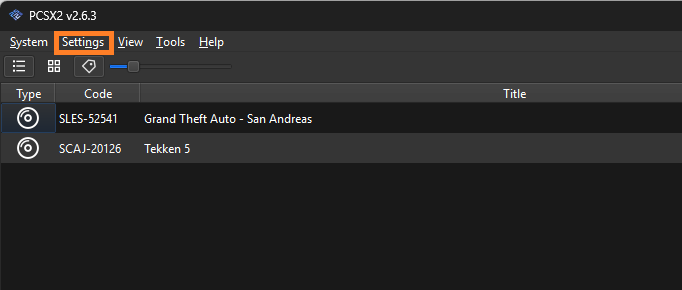
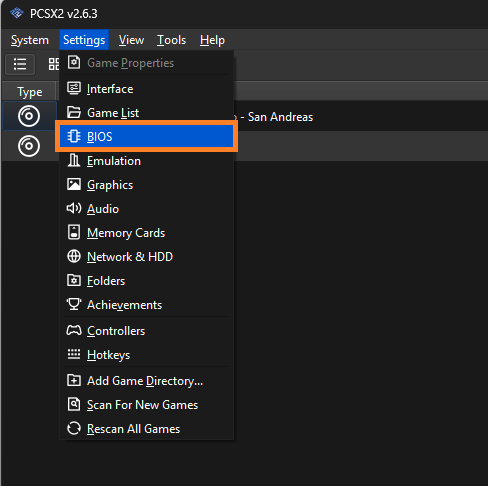
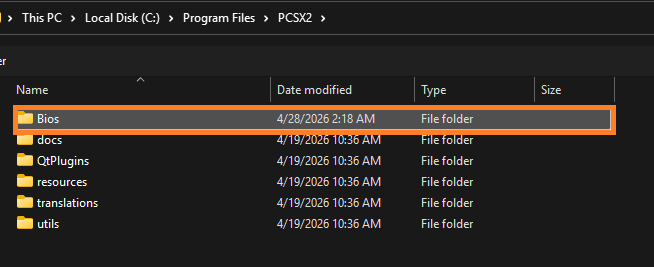
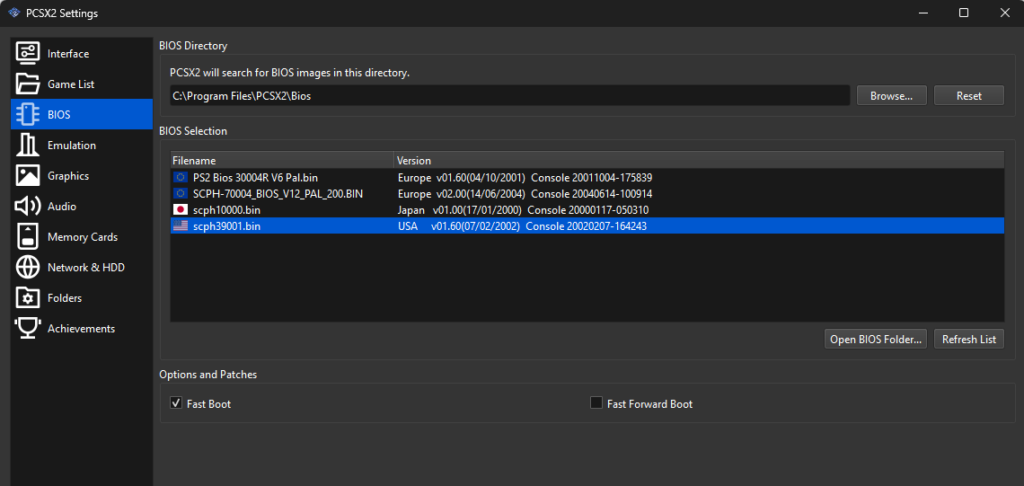
Steps to follow:
- Open PCSX2
- Go to Settings → BIOS
- Click Browse and select BIOS folder
- Click Refresh List
- Select your BIOS from the list
- Click Apply / Save
If you skip this step, PCSX2 will still show the same error.
Step 4: Match BIOS Region with Game
Region mismatch can cause:
- Black screen
- Game crashes
- Boot failures
Region types:
- NTSC-U → USA games
- PAL → Europe games
- NTSC-J → Japan games
Using the correct BIOS region improves compatibility and stability.
Step 5: Fix BIOS Not Showing Issue
Sometimes BIOS is present but not visible in PCSX2.
Common reasons:
- BIOS is inside a ZIP file
- BIOS is inside another folder
- Wrong folder path selected
- File is corrupted
Fix:
- Extract BIOS properly
- Move file directly into BIOS folder
- Click Refresh List again
This issue is very common during first-time setup.
Step 6: Update PCSX2 to Latest Version
Older versions of PCSX2 may:
- Fail to detect BIOS
- Have outdated folder paths
- Show compatibility issues
Solution:
- Download latest version of PCSX2
- Reconfigure BIOS after update
Modern versions (2026 builds) have improved detection and stability.
How to Verify the PS2 BIOS Firmware Installation in PCSX2
After setting up your BIOS, it’s important to confirm that PCSX2 is actually detecting and using it correctly. Many users assume the setup is done, but a quick verification helps avoid future errors like black screens or game crashes.
Method 1: Check BIOS Detection in Settings
The easiest way to verify installation is through PCSX2 settings.
Steps:
- Open PCSX2
- Go to Settings → BIOS
- Look at the BIOS list section
If your BIOS is installed correctly:
- You will see one or more BIOS versions listed (e.g., USA, Europe, Japan)
- The BIOS will show region and version details
- One BIOS will be selected as active
If the list is empty, it means PCSX2 is still not detecting your BIOS, and you should recheck folder placement.
Method 2: Boot the BIOS Screen (Best Test)
This is the most reliable way to confirm everything is working.
Steps:
- Open PCSX2
- Click System → Start BIOS (No Disc)
If the BIOS is working correctly:
- You will see the PlayStation 2 startup screen
- The PS2 menu will appear (Memory Card / System Configuration)
If this screen loads, your BIOS is fully functional and properly installed.
Final Thoughts
This error might look serious, but it’s actually one of the easiest PCSX2 problems to fix. In most cases, it comes down to wrong file placement or missing configuration.
Once you correctly set up BIOS, PCSX2 works smoothly and runs games without issues.If you follow the steps above carefully, you’ll fix the error permanently and avoid it in the future.