
If you want to play classic PlayStation 2 games on your computer, PCSX2 is one of the most trusted and advanced PS2 emulators available for Windows.
It allows users to run thousands of PS2 titles with improved graphics, higher resolutions, controller support, save states, and performance enhancements that go far beyond the original console.
In this complete guide, you will learn how to download, install PCSX2 BIOS, and set up PCSX2 on a Windows PC using the best practices for smooth gameplay and long-term stability.
What Is PCSX2?
PCSX2 is a free and open-source PlayStation 2 emulator designed for Windows, Linux, and macOS. It recreates PS2 hardware behavior on modern systems, allowing you to run PS2 games from discs or ISO backup files. It supports advanced features such as:
- HD upscaling up to 4K
- Save/load states
- Custom controller mapping
- Texture filtering and anti-aliasing
- Widescreen patches
- Performance speed hacks
- Memory card management
For Windows users, PCSX2 remains one of the best solutions for preserving and enjoying PS2 gaming.
System Requirements for PCSX2 Emulator
Before downloading PCSX2, ensure your PC meets these recommended specifications:
Minimum Requirements:
- Windows 10 or Windows 11 (64-bit)
- Intel Core i3 / AMD Ryzen 3
- 8GB RAM
- DirectX 12 compatible GPU
- SSD storage recommended
Recommended Requirements:
- Intel Core i5 / Ryzen 5 or better
- 16GB RAM
- NVIDIA GTX 1650 / AMD RX series GPU
- Dedicated graphics card
- Fast SSD for game storage
Better hardware results in smoother gameplay, especially for demanding games like God of War or Gran Turismo 4.
First Time Configuration PCSX2 BIOS Setup
Step 1: Download PCSX2 for Windows
To stay secure and receive the latest performance updates, always download PCSX2 from the official website.
Download Process:
- Visit the official PCSX2 website.
- Click the Download section.
- Select Windows (64-bit) version.
- Choose the latest stable release or nightly build.
- Save the installer file to your PC.
Step 2: Install PCSX2 on Windows
After downloading:
- Open the installer file.
- Click Next and accept the license terms.
- Choose installation location.
- Allow required components to install.
- Finish setup and launch PCSX2.
The first launch will start the initial configuration wizard.
Step 3: Add PS2 BIOS (Required)
PCSX2 requires a legally obtained PS2 BIOS from your own PlayStation 2 console, as it is essential for booting and running games.
This BIOS is not included with the emulator, so you’ll need to add it separately after installing PCSX2. Below, you can find and use the required PlayStation 2 BIOS files to complete your PCSX2 BIOS Setup.
What BIOS Does:
The BIOS acts as the startup firmware of the original PS2 hardware. Without it, PCSX2 cannot boot games correctly.
How to Set Up PS2 BIOS in PCSX2:
Step 1: Create a BIOS Folder
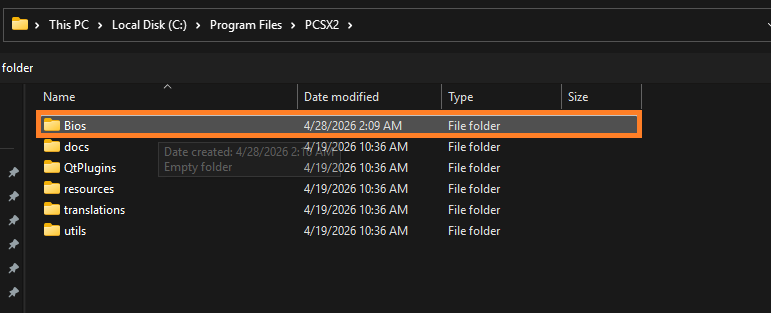
- Open your PCSX2 installation directory, then create a new folder and name it “PCSX2 BIOS” (or simply “BIOS”) to store your BIOS files in one place.
- This folder will store all your BIOS files in one place
Step 2: Add BIOS Files
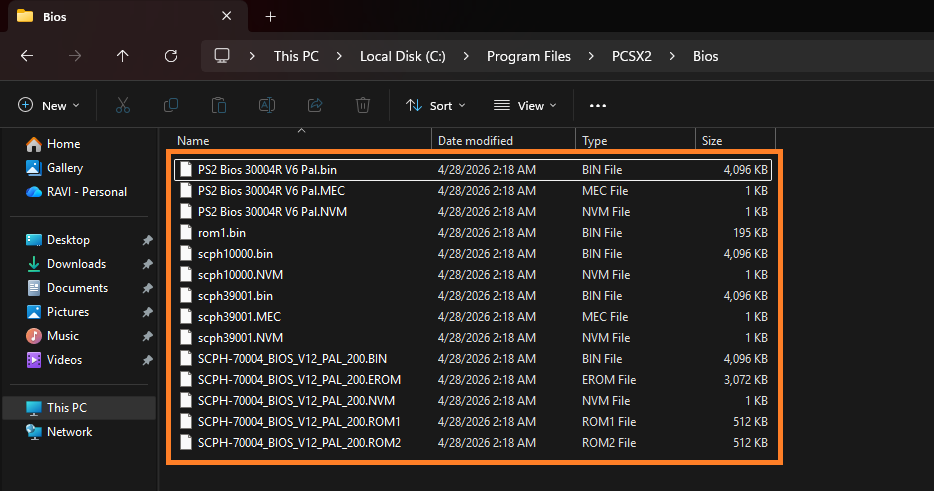
- Copy your PCSX PS2 BIOS files (.bin) into the BIOS folder
- Make sure the files are extracted (not in ZIP or RAR format)
- You can place multiple BIOS versions (USA, Europe, Japan) in the same folder
Step 3: Open PCSX2 Emulator
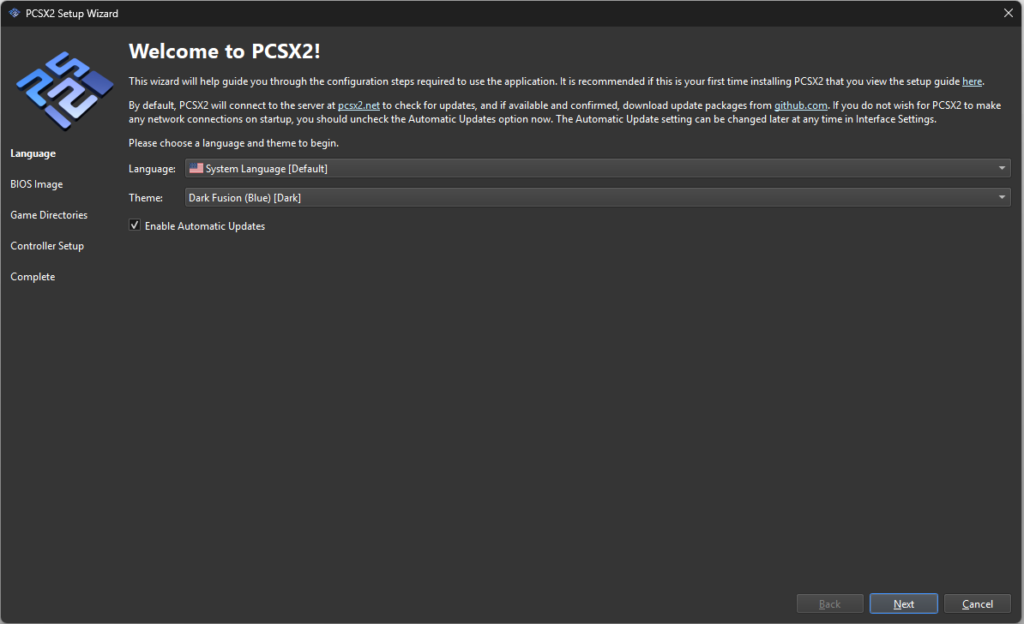
- Launch the PCSX2 emulator on your system
- If it’s your first time, the setup wizard may open automatically
- If not, go to:
Settings → BIOS (or Config → BIOS depending on version)
Step 4: Select BIOS Folder
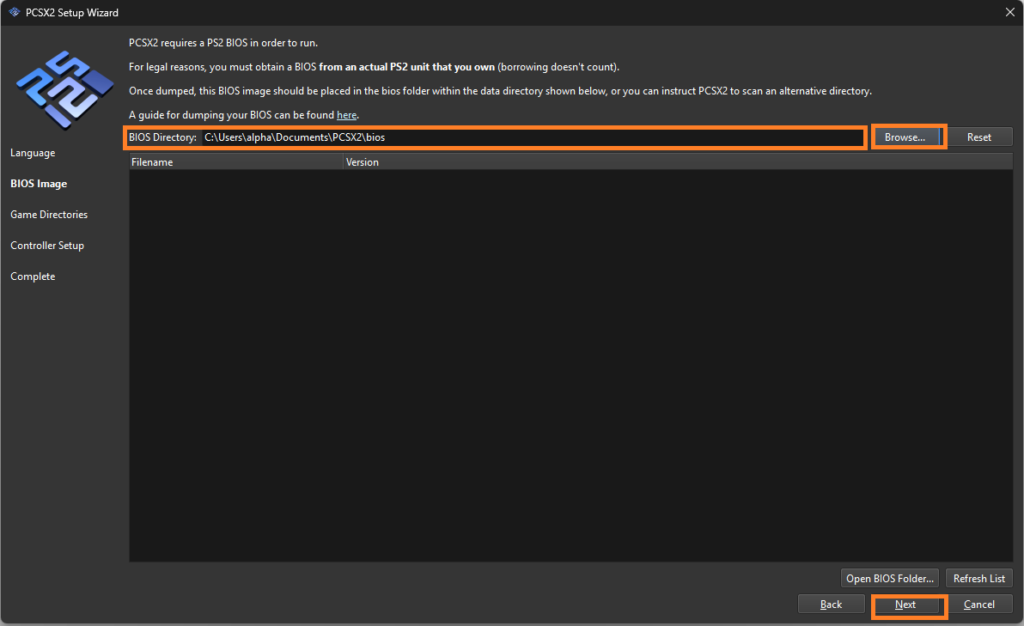
- Click on Browse or Open BIOS Folder
- Navigate to the folder where you placed your BIOS files
- Select the folder and confirm
PCSX2 will now scan and detect all available BIOS files.
Step 5: Choose BIOS Region
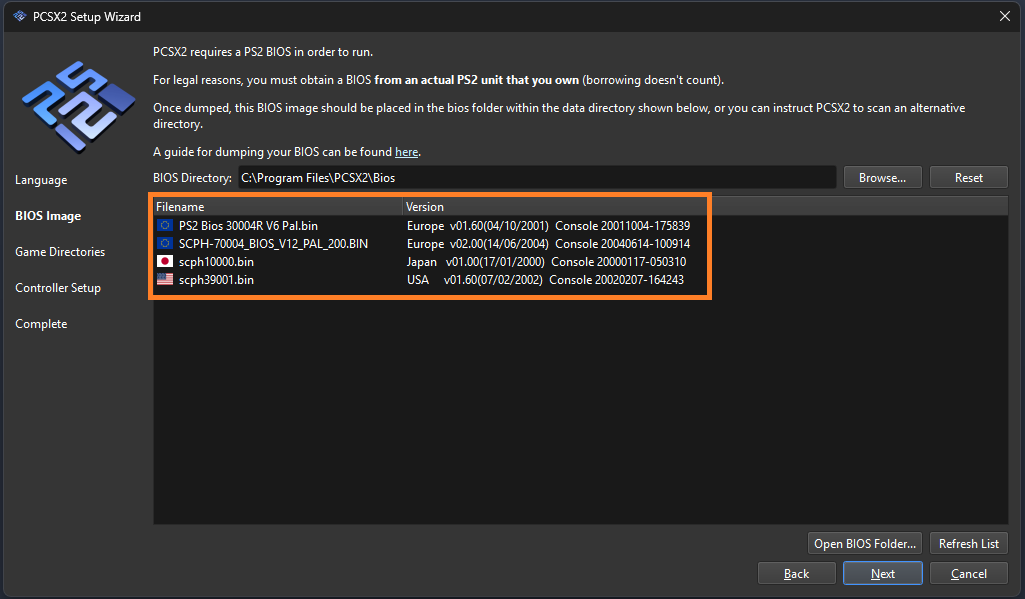
- You will see a list of BIOS versions inside PCSX2
- Select the one based on your game region:
- USA (NTSC-U) – for North American games
- Europe (PAL) – for European/Australian games
- Japan (NTSC-J) – for Japanese games
Choosing the correct region improves compatibility and reduces errors.
Step 6: Add Game Directory in PCSX2
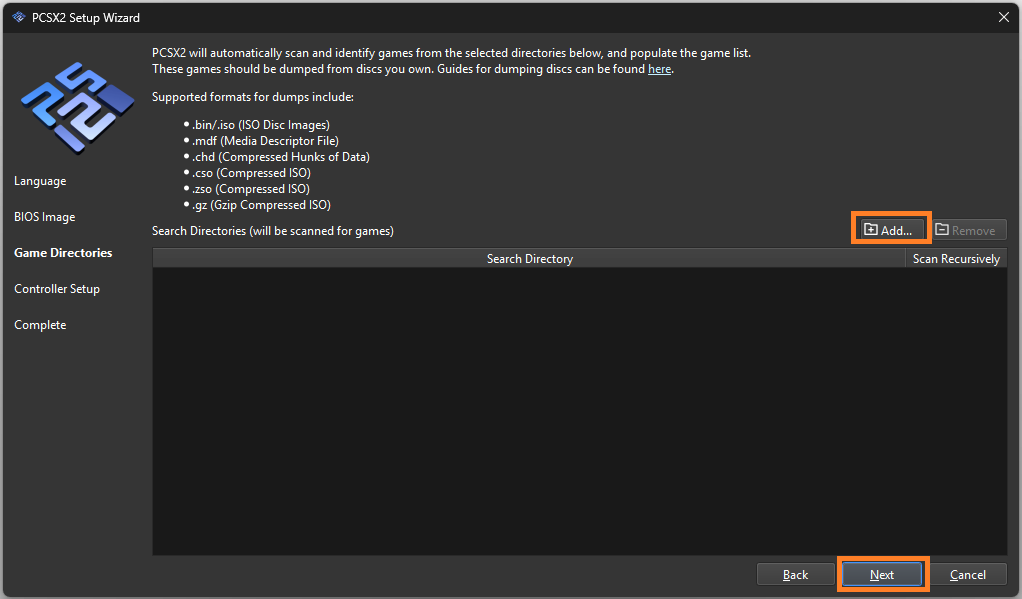
Click on “Add Game Directory”.
Now browse your computer and select the folder where your PS2 game files are stored.
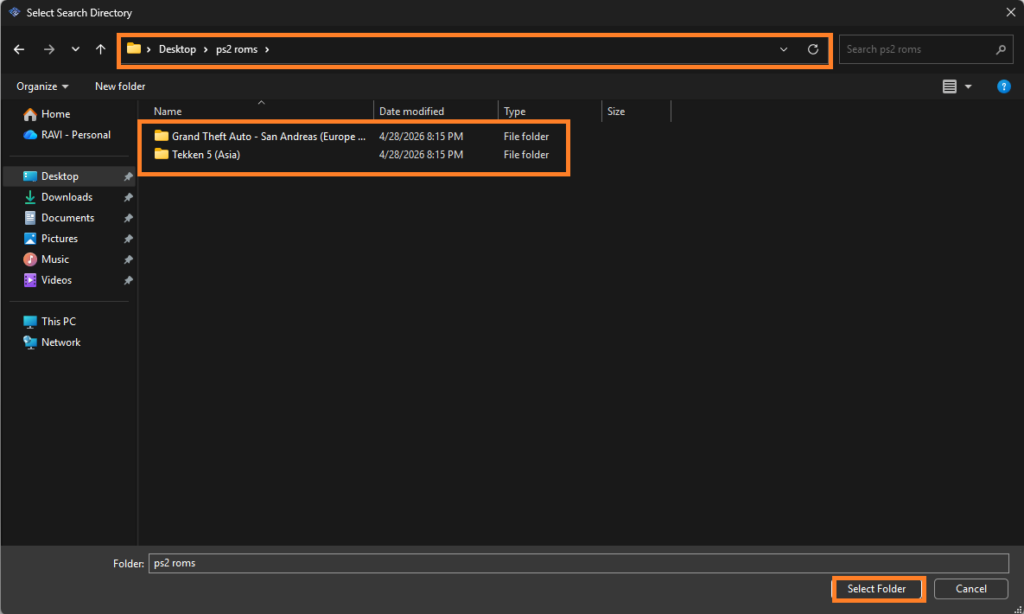
✔ Example:Documents > PS2 Games
orD:\Games\PCSX2
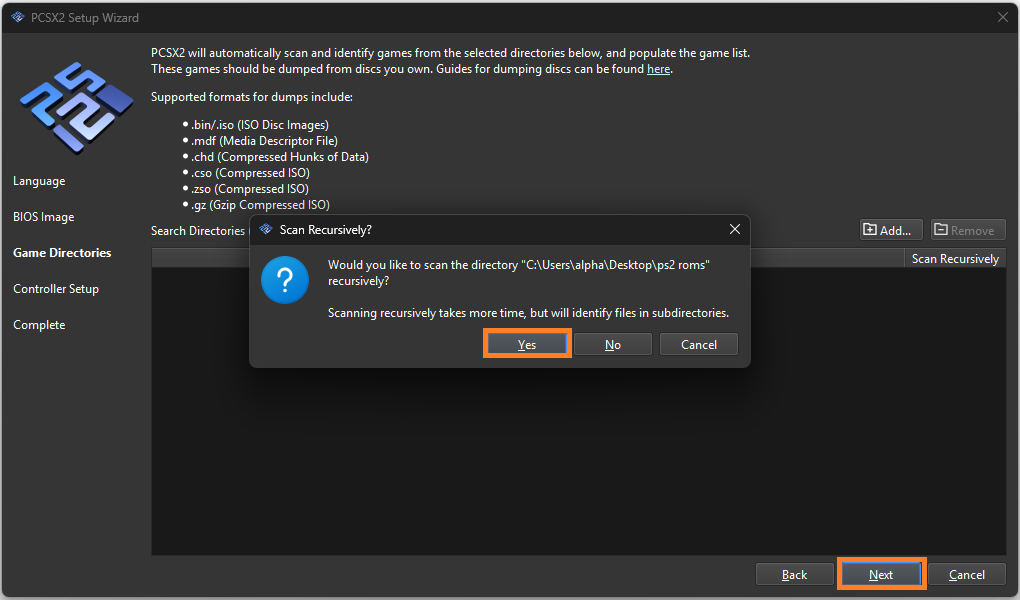
- Enable Recursive Scan (Optional)
- If your games are stored inside subfolders, enable “Scan Recursively”.
- This allows PCSX2 to detect games even if they are organized in multiple folders.
- Step : Scan for Games
- After selecting the folder, PCSX2 will automatically scan and populate your game list.
- If it doesn’t appear immediately, click on:
- Scan for New Games
- or Rescan All Games
Once the scan is complete, your games will appear in the main interface.
You can now:
- Double-click any game to launch instantly
- View game details in a structured list
- Avoid manually browsing files every time
PCSX2 Supported Game Formats
PCSX2 supports:
- ISO
- BIN/CUE
- CHD
- MDF / CSO
Compressed formats (ZIP, RAR, 7Z) must be extracted before use.
Final Check (Important)
- If no “BIOS not found” error appears, your setup is successful
- You can now load games using:
System → Boot ISO (Fast)
Step 4: Configure Graphics Settings
PCSX2 offers major visual upgrades over the original PS2.
Recommended Settings:
- Renderer: Vulkan (best performance for most GPUs)
- Resolution: 3x Native or 4x Native
- Texture Filtering: Bilinear
- Anti-Aliasing: Optional
- V-Sync: Off (unless screen tearing occurs)
Low-End PC Settings:
- Use Native Resolution
- Enable Speed Hacks
- Lower internal resolution
Step 5: Configure Controller Input
PCSX2 supports:
- Xbox Controllers
- PlayStation Controllers
- Keyboard
- Generic USB Gamepads
Setup Steps:
- Connect controller before launching emulator.
- Open Controller Settings.
- Map buttons manually or auto-detect.
- Save profile.
Using an Xbox or DualShock controller gives the best experience.
Step 6: Improve Performance
If games lag or stutter:
Best Optimization Tips:
- Switch renderer between Vulkan / DirectX 12
- Enable MTVU multi-threading
- Use preset speed hacks
- Close background apps
- Update GPU drivers
- Use SSD storage
Step 7: Save Progress
PCSX2 supports two save methods:
Memory Card Saves
Works like original PS2.
Save States
Instant save/load anytime.
Use both for maximum safety.
Common Issues & Fixes
Black Screen
- Wrong BIOS selected
- Bad ISO file
- Graphics plugin issue
Slow Gameplay
- Resolution too high
- CPU bottleneck
- Background apps running
Controller Not Working
- Reconnect controller
- Re-map buttons
- Restart emulator
Why PCSX2 Is the Best PS2 Emulator for Windows
PCSX2 stands out because it offers:
- Huge game compatibility
- Constant updates
- High-resolution graphics
- Reliable controller support
- Advanced customization
- Free open-source development
It remains the gold standard for PS2 emulation on PC.
PCSX2 Setup FAQs (BIOS, Installation & Configuration Guide)
Here are the most commonly asked questions related to setting up PCSX2, including BIOS configuration, installation, and troubleshooting. These FAQs are based on real user queries to help you quickly solve setup issues.
Q1: What do I need to set up PCSX2 properly?
To set up PCSX2 correctly, you need:
The latest PCSX2 emulator
A legally obtained PS2 BIOS file
PS2 game files (ISO, BIN/CUE, or CHD format)
A compatible PC with decent CPU, GPU, and RAM
Without the BIOS file, PCSX2 cannot boot or run games.
Q2: What file formats does PCSX2 support?
PCSX2 supports:
ISO
BIN/CUE
CHD
MDF
CSO/ZSO
Compressed files like ZIP or RAR must be extracted before use.
Final Verdict
If you want to relive classic PlayStation 2 games on Windows, learning how to download and set up PCSX2 PS2 Emulator on PC is the smartest starting point.
With proper BIOS setup, graphics tuning, and controller configuration, PCSX2 can deliver a better-than-console experience.
Whether you want smoother frame rates, sharper visuals, or quick save states, PCSX2 transforms old PS2 games into a modern PC gaming experience.